Three audiences, one system.
Crew, guests and the engineer each get the part of LUMA that is theirs. The same appliance, the same Lutron processor, three very different screens.
Decks, then rooms, then loads. Exterior apart from interior.
A house has rooms. A yacht has decks, and each deck has an outside and an inside. LUMA is arranged that way. Home carries the exterior master brightness with quick presets, the exterior groups (low level, underwater, wall wash) and the colour strip for the whole boat. Each deck has its own page with the same controls scoped to that deck, then its room cards divided into Exterior and Interior.
Open a room and the scenes programmed in Lutron Designer are already there as pills: Day, Evening, Night, Off. Tapping one tells the processor to run that scene exactly as programmed, with its own fade times. Below the pills: a master bar for the room, a card for every load, and a colour fixture card for every RGBW strip.
RGBW tape is treated as fixtures, not channels: hue, white temperature from 2200 K to 6500 K, and brightness, grouped by ceiling, low level, staircase and pool. A Sync all button locks every type to follow the ceiling bar live.
Every level streams back from the processor. Drag a bar on the iPad and the room follows. Press a keypad by the door and the bar follows. Two screens never disagree.
Hold the red button for a second and a half, as on board. The decks go down one by one, about 150 ms apart, and private cabins are never included.
Navigation
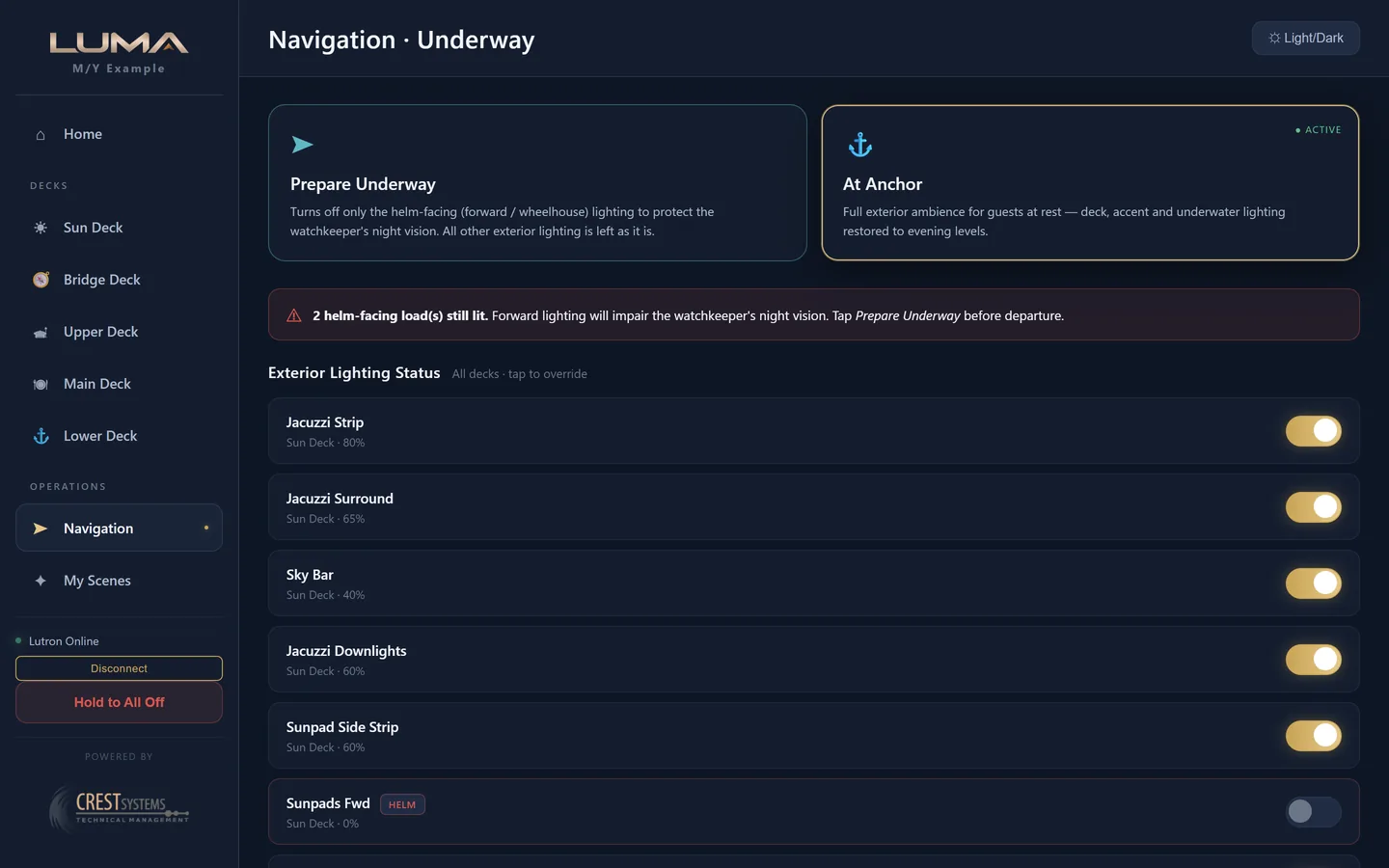
For the officer of the watch. A status banner says whether any helm facing lights are lit. Prepare Underway turns off only the helm facing circuits and leaves everything else exactly as it is. At Anchor restores the evening ambience for guests. Every exterior load is listed with its deck, its level and a Helm chip where it matters, each with its own override.
My Scenes
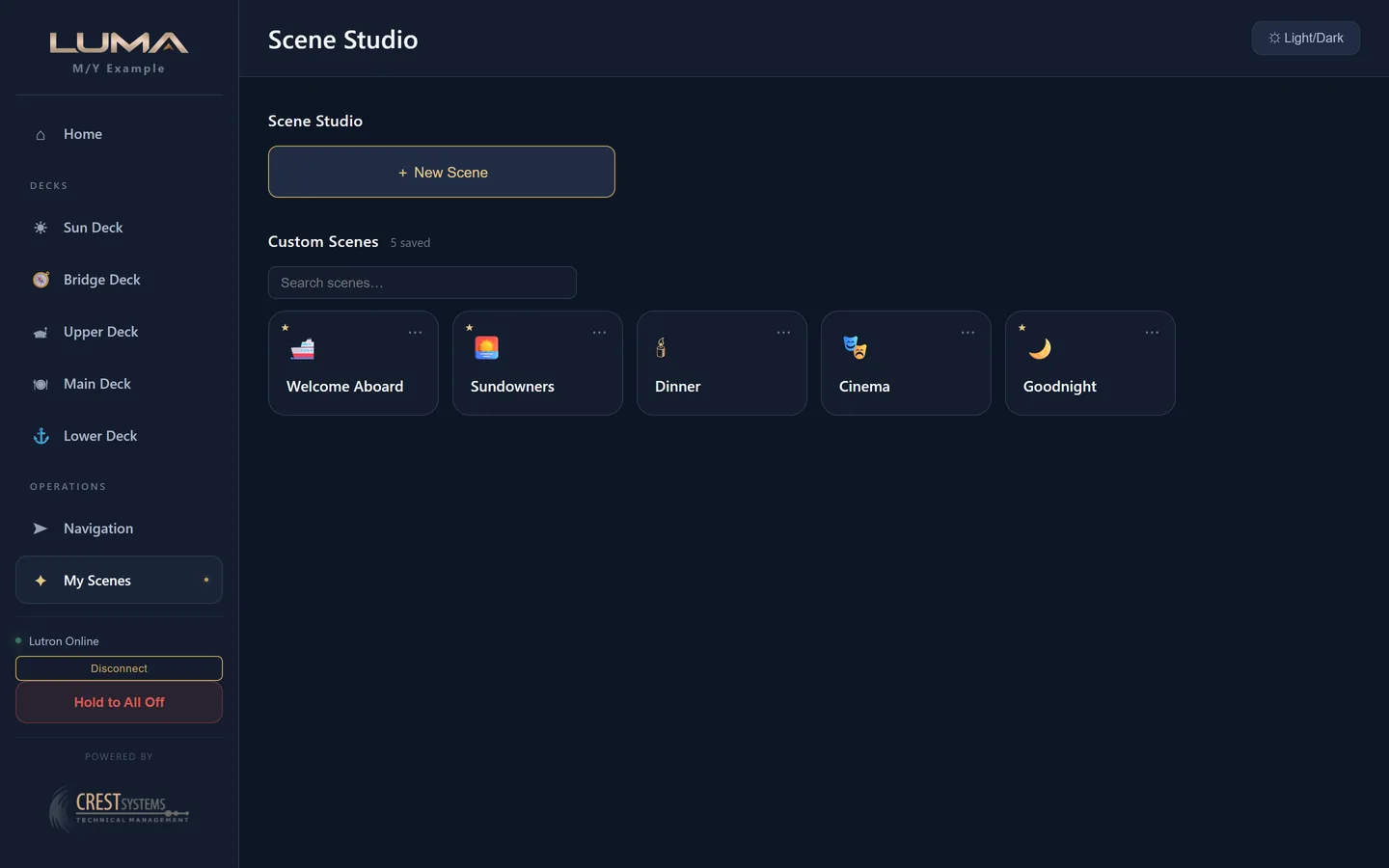
Set the boat how you want it, capture, name it, choose an icon. The snapshot lives on the appliance, not in the processor, so nothing needs a programming tool. Re-capture it later, rename it, or pin it to Home so it becomes a one tap button.
Day and Night
Dark is the default. Day switches to a light theme for bright sunlight. Night switches to a deep red tint for the bridge at night and preserves the watchkeeper's dark adapted vision.
A plaque in the cabin. Nothing to install.
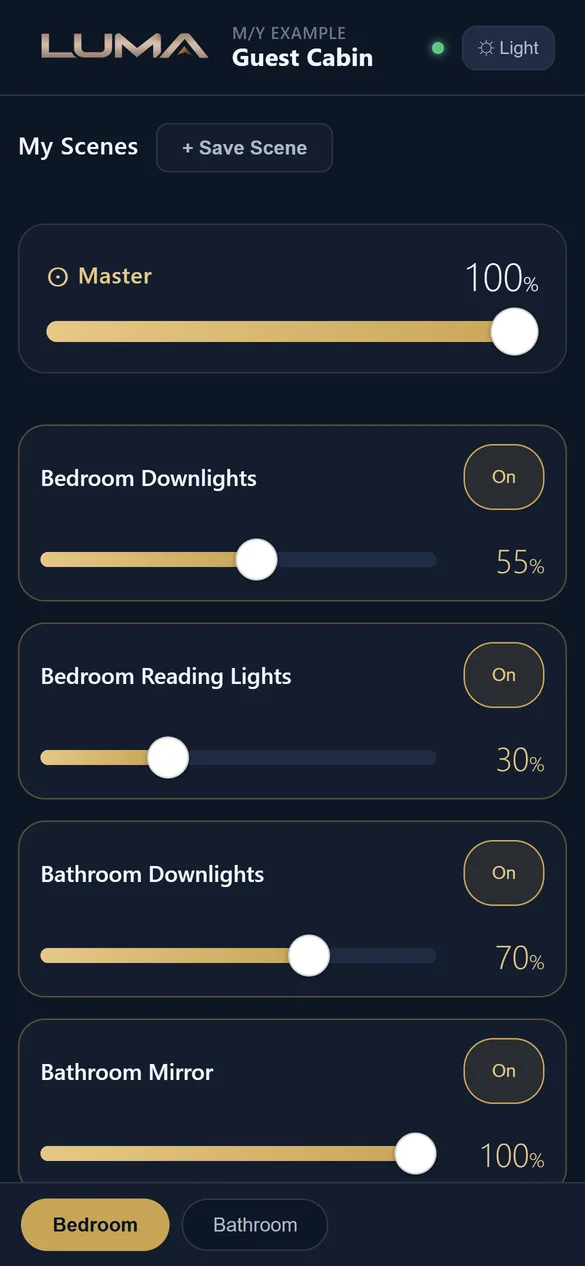
Guests do not want an app, a password or an explanation at embarkation. They want the lights. So each cabin gets a small plaque carrying a QR code and an NFC tag. The guest holds a phone to it and their room opens on the vessel's own network: scenes, a master bar, each light, colour where there is colour, and a place to save their own looks for the week.
They see only their cabin. The code expires at the end of the charter and can be disabled or regenerated by the crew at any time. A cabin shared by two guests can be split into Bedroom and Bathroom so each sees their own space. And because cabins are marked private, no global scene and no All Off will ever touch them.
- The code is the keyNo PIN. Crew never hand out a password. The link works only on the vessel network.
- ExpirySet per token. After expiry the guest sees a plain message; the token can be extended or re-enabled.
- Rooms in a tokenOne token can cover a suite: bedroom, bathroom, office, each as a tab.
- Guest scenesGuests save their own scenes. Crew clear them at the end of the charter with one button.
- Scan or tapOpen your phone's camera and point it at the code, or hold your phone near the NFC mark, then tap the banner that appears.
- Join the boat's Wi-Fi firstThe link only opens on the vessel's own network. If your phone isn't connected yet, crew will have the network name and password.
- Your cabin opens, no PINScenes, a master bar, every light, colour where there is colour. Tap a scene, or make your own.

Every design carries the same QR code and NFC tag.


Plaques shown are concept renders. Table, wall and door frame designs in brushed metal, leather, stone and timber are in development; every one carries the QR code and an NFC tag.
Commissioned from the Designer report, not from scratch.
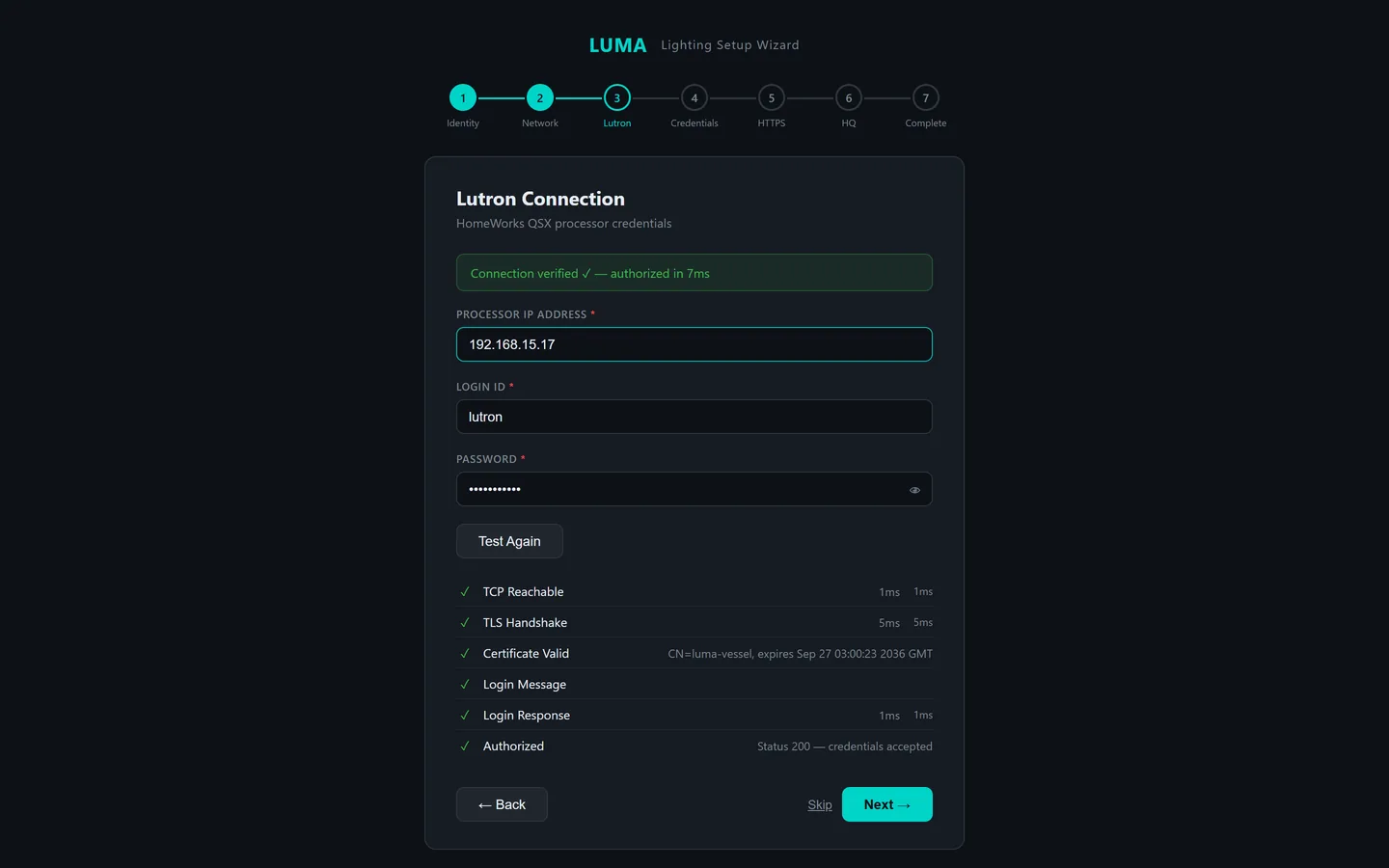
LUMA installs on a dedicated appliance, with a tray app for the person at the machine. The first run shows a wizard: identity, network, the Lutron login, PINs, a certificate, done. Then the Configurator, laid out as seven numbered steps in the order a vessel is commissioned.
Nothing is typed by hand. The Integration Report exported from Lutron Designer, XML or CSV, is imported and every deck, room and load is created with its integration ID. Save and Apply pushes the result to every client on the network. Backups are a single file. The Lutron programming itself is never touched.
- VesselName, subtitle, the address crew devices use to reach it.
- LutronProcessor address and the integration login from Designer. Test Connection runs a multi-point check before anything relies on it.
- ImportThe Integration Report. Replace all on a fresh vessel, or match new loads into an existing layout.
- Decks and loadsCheck names and IDs. Flag rooms Public, Exterior and Helm. Auto classify strips. Test any load with one press.
- ScenesRefresh scenes from Lutron: rooms are matched to areas by name and the Designer scenes are pulled in.
- GuestQR codes per cabin, expiry, split rooms.
- SystemSave and Apply. Download a backup. Change the PINs.
Ask about LUMA for your vessel.
Crest Systems commissions LUMA ourselves or hands it to your ETO with the checklist and the installer. Send the vessel's Designer report and we'll tell you exactly what commissioning involves.
james@crestsystems.co.uk